The Science of Evening Light: Windows 11 Night Light and Better Sleep
Using Windows 11 Night Light to support your body’s natural wind-down and reduce evening screen strain.
Published on

Staring at a bright screen late at night can leave you wired when you’d rather be winding down. The good news: a small change in the color of that light can make a real difference. Here’s how evening screen light affects you—and how to use Windows 11 Night Light to support better rest and visual comfort.
1. The Science of Evening Light
The Blue Light Frequency
Phones, tablets, and computers emit light across many wavelengths, but the short-wavelength end of the spectrum—what we often call "blue light"—is especially active in signaling your brain. In the morning and afternoon, that signal can help with alertness and focus. In the evening, however, those same frequencies can tell your brain it’s still daytime, which can get in the way of feeling ready for sleep.
Melatonin and Rest
Melatonin is a hormone produced by your brain’s pineal gland, mainly in response to darkness—specifically, the absence of short-wavelength blue light. It doesn’t put you to sleep by itself; instead, it signals that it’s time to wind down and helps regulate your sleep–wake cycle (circadian rhythm). Levels typically rise in the evening and stay elevated overnight, then drop in the morning. When bright or blue-rich light hits your eyes in the evening, it can suppress that rise and make it harder to feel drowsy when you want to.
Reducing your exposure to those wavelengths in the hours before bed can help support your body’s natural melatonin production. By shifting your screen toward warmer tones in the evening, you’re not "fixing" sleep with a single setting—you’re giving your body a gentler environment so it can do what it already knows how to do: ease into rest. Current research supports reducing evening blue-wavelength exposure and using warmer lighting or software controls (like Night Light) as part of a wind-down routine.
Why Wavelength and Photons Both Matter: The 480 nm Peak
Your circadian clock does not mainly use the rods and cones that form the picture you read. Those cells can still send some input along, but the main light signal comes from specialized sensors called intrinsically photosensitive retinal ganglion cells (ipRGCs). These cells contain a photopigment called melanopsin, which responds most strongly to light around 480 nanometers—the bright blue of an afternoon sky.
When light near 480 nm hits your eyes, ipRGCs signal your master biological clock (the suprachiasmatic nucleus) to suppress melatonin production and promote alertness. This explains why Night Light alone is only half the equation:
- Night Light is a software filter: It adjusts the graphics card's color lookup table (LUT) to reduce blue subpixel output, shifting the screen toward amber.
- The backlight is physical: Many modern monitors rely on LEDs built from a high-energy blue pump coated with phosphor. Even when the pixels look amber, that backlight is still on. The color shift does not turn the LED pump down.
If your screen stays at full brightness, a lot of light can still reach your eyes and stimulate your ipRGCs, including light near 480 nm. That melanopsin-weighted light is sometimes called melanopic lux. It is not a raw count of every photon. Shifting color warmth cuts the sharpest circadian spike; dropping the brightness slider starves the sensors of total light. If evening screen habits have already disrupted your sleep schedule, you can measure your accumulated deficit with the Sleep Debt Calculator.
2. Customizing Your Windows 11 Night Light
The Strength Settings
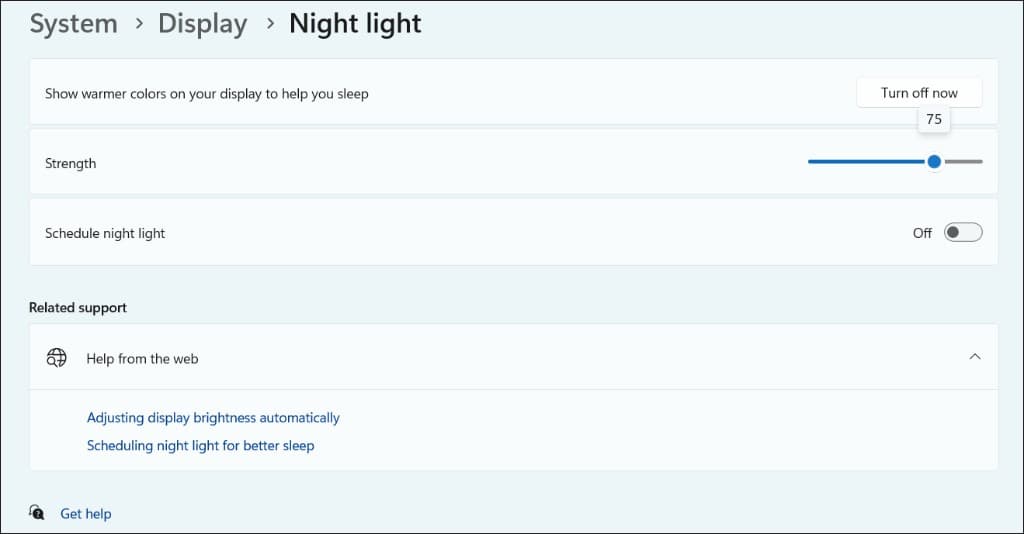
Windows 11’s Night Light uses a Strength slider so you can choose how warm the display looks. At higher strength, the screen shifts toward amber and orange tones, which many people find gentler on the eyes after the sun goes down. There’s no single "correct" value—your goal is a level that feels comfortable for you.
Finding Your Comfort Level
Start with a moderate setting and use the slider until the screen feels warm and easy to look at. If you’re in a dim room, you might prefer a stronger shift; in a brighter space, a lighter tint may be enough. The idea is to reduce harshness without making the image so orange that it gets in the way of work or reading.
The Gradual Transition
Night Light can turn on and off on a schedule. When you use that schedule, Windows 11 can fade the color change in slowly instead of flipping it in an instant. That gradual shift makes the change feel like a natural part of your evening rather than a sudden switch, so you’re more likely to stick with it.
This Night Light Page Shows the Strength Slider and the Schedule
Swipe horizontally or scroll to the right to view the rest of this screenshot.
Brightness and Night Light Together
For more personal precision, combine Windows 11’s general brightness setting with the Night Light strength slider. The main brightness control (Settings → System → Display, or the brightness slider in Quick Settings next to the taskbar) governs how bright the panel is overall. Night Light only shifts color temperature toward warm. So: brightness = how much light; Night Light = how warm it looks. In a dark room, turning brightness down and Night Light strength up often feels much gentler than either alone. In a brighter space, you might leave brightness higher and use a lighter warm tint. Experiment with both sliders—many people find a slightly dimmer, warmer screen in the hour before bed more comfortable than adjusting just one.
3. Designing a Personal Sleep Schedule
Strategic Timing
A practical approach is to set Night Light to begin 60 to 90 minutes before you plan to go to bed. That window gives your mind time to start unwinding while you finish up tasks or relax, and it aligns the screen’s warmth with the time when supporting melatonin matters most.
Manual Control
You don’t have to rely only on the schedule. On days when you have extra eye strain or you’re working in a dim room earlier in the day, you can turn Night Light on manually from the Quick Settings (or System > Display > Night light). Having both scheduled and manual options keeps the feature useful in real life.
4. Creating a Holistic Lighting Environment
Matching Your Surroundings
If your room is lit by warm lamps or dimmed overhead lights, a cool, bright monitor can create a sharp contrast that adds to eye strain. Aligning your screen’s warmth with the rest of the room—so the display doesn’t feel like a bright white rectangle in an otherwise soft space—can make the whole environment feel easier on your eyes.
The Benefit of Warmth
Shifting toward warmer tones doesn’t just support sleep; it can make reading and browsing feel less intense. Many people notice that long sessions in the evening feel more relaxed when the screen isn’t blasting cool blue light, even if they’re not measuring melatonin directly.
5. Practical Tips for Visual Comfort
Reducing "Digital Grit"
That end-of-day feeling—when your eyes feel tired, and the screen seems a bit too sharp or "gritty"—often comes from brightness and color temperature as much as from total screen time. Warmer light can dial back that sense of harshness—as warmer light is naturally lower-energy than blue light, reducing the intensity of the signal hitting your retinas—and help reduce the visual noise that contributes to late-day fatigue.
Simple Next Steps
Check your Windows 11 display settings, turn on Night Light, and set a strength that feels comfortable. Add a schedule that starts an hour or two before bed. Then notice whether your eyes feel more relaxed and whether drifting off feels a bit easier. Small, consistent changes often add up more than a single perfect setup.
| Setting | Eye comfort angle | Sleep claim boundary |
|---|---|---|
| Warm color shift (Night Light) | Cuts harsh blue-white glare that feels “scratchy” after long evenings. | Not a treatment for insomnia or circadian disorders—think display polish, not medicine. |
| Schedule (sunset or bedtime) | Automates the habit so you are not fiddling with sliders at 11 p.m. | Still pairs best with dim room lighting and a consistent wind-down routine. |
| Display brightness slider | Matches screen output to ambient room light to reduce high-contrast strain. | Dimming brightness starves ipRGC sensors of light volume, but does not replace sleep hygiene. |
A Helpful Summary: Your Comfort Check
- Identify your goal: Think about when you’d like to be resting.
- Try a small change: Adjust Windows 11 Night Light to a warm, comfortable level.
- Combine brightness and Night Light: Use the general brightness slider with the Night Light strength for a gentler screen in dim rooms.
- Set the timer: Schedule it to start an hour or two before bed.
- Notice the difference: See if your eyes feel more relaxed and if drifting off feels a bit easier.