Windows 11 Starts a Crowd at Login. A New Computer Starts the Same Crowd.
Open Settings → Apps → Startup, or Task Manager → Startup apps. High impact means a heavy program at login—not a broken chip. Clean the list, wait a few days, then decide if a faster PC is still worth it.
Published on

Windows 11 Startup apps are programs that open themselves when you sign in. They are not a company. They are not the whole computer. They are a lineup at the door: chat tools, cloud folders, game launchers, “helpers,” updaters. Some sit on the taskbar. Some hide in the background.
A faster computer is a wider door. If you move the same lineup to a new machine, the same crowd still shoves in. That is the check this post is for—before you feed wait-time into the Is a Faster Computer Worth It? calculator.
Disclaimer: This is general education, not IT support for your specific PC. Lists differ. Work and school devices may lock these switches. Do not turn off a program you cannot name. Your sign-in, your apps, and a written note of what you changed control the experiment.
What Windows 11 calls Startup apps
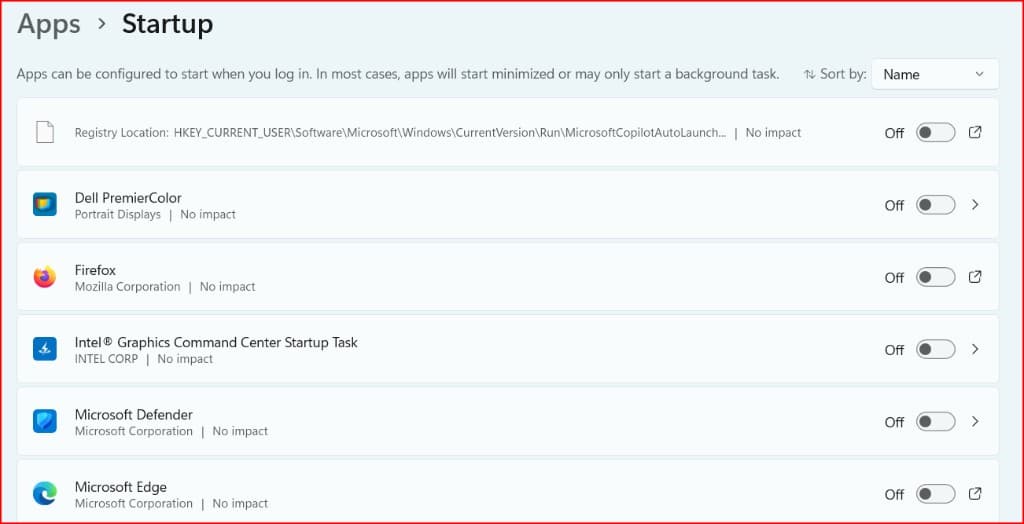
In Settings, the page is Start → Settings → Apps → Startup. Each row is an app. The switch is On or Off. On means Windows may start that app when you sign in. Off means it waits until you open it yourself. Turning a switch Off does not uninstall the app.
Sign-in is the moment that matters
The crowd shows up after you unlock your account—not only while the manufacturer logo is on screen. A PC can finish “booting” and still feel busy for minutes because those apps are still loading. If you time only the logo, you miss the lineup.
This list is not every hidden program
Drivers, Windows services, disk encryption, and some update tasks can run outside this list. Cleaning Startup apps can shorten the sign-in pile. It cannot promise a quiet machine if something else is the bottleneck. That is why this check comes before an upgrade, not instead of diagnosing heat, a full disk, or a security switch like Memory integrity.
Swipe if needed — large labels stay readable on a phone.
Two screens. Same list. Different jobs.
Windows 11 gives you two views of the same idea. Use both. One is for the switch. One is for the weight.
Settings → Apps → Startup
Press the Windows key + I, or open Start and choose Settings. Then Apps, then Startup. You can sort by name, status, or startup impact. Flip a toggle On or Off. That is the control you live with every morning.
Task Manager → Startup apps
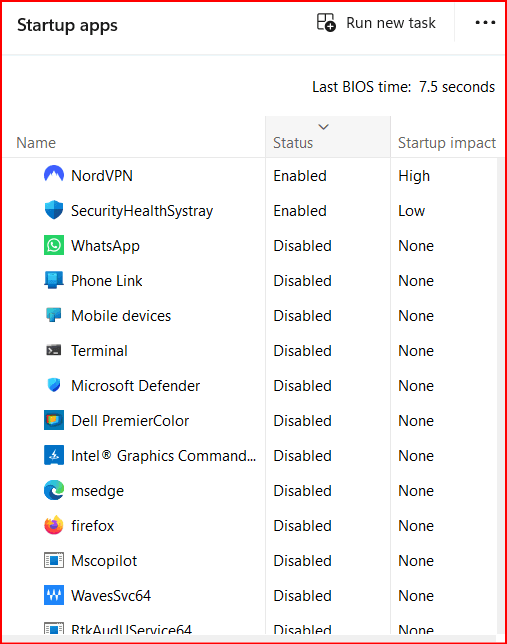
Press Ctrl + Shift + Esc. Or right-click Start and choose Task Manager. Open the Startup apps tab (Windows 11 wording). If the tab is missing, look for More details first—that older layout still shows up on some PCs. This view is the same registered list as Settings, with a clearer weight column. You can also Enable or Disable a row here.
A third hiding spot: a special folder
Settings and Task Manager share one registered list. A second bucket lives in File Explorer: shortcuts Windows runs when you sign in. To open that folder, press the Windows key + R, type shell:startup, and press Enter. That folder is for your account. An empty folder means that second bucket is empty—it does not mean Settings is empty. If it has shortcuts, those join the morning crowd too. If you share the PC and something starts for every account, the all-users folder is shell:common startup, opened the same way.
Swipe if needed — large labels stay readable on a phone.
Windows 11 Settings: Apps → Startup
Swipe horizontally or scroll to the right to view the full screenshot.
Windows 11 Task Manager: Startup Apps
Swipe horizontally or scroll to the right to view the full screenshot.
High, Medium, Low, Not measured, None
Think of impact as a backpack at the door. High is a heavy bag. Low is a light bag. The label is not “this app is junk.” A backup tool can be High and still be a tool you want at sign-in. A game launcher can be High and still be a tool you only need at 9 p.m.
Windows builds the label from how much processor time and disk work that app used during startup on your computer. The screenshot above is one PC’s list. Yours can look different. The cutoffs below are the ones Microsoft publishes for Task Manager. You do not type them. You read High / Medium / Low.
| Label you see | In the doorway | How Windows draws the line |
|---|---|---|
| None | That app is not in the morning lineup | The startup app is disabled |
| Not measured | On, but Windows has not weighed it yet | Enabled, and no measurement data yet |
| Low | A light bag | Processor time under 300 milliseconds, and disk under 292 KB |
| Medium | A noticeable bag | Processor time over 300 milliseconds and under 1 second, or disk over 292 KB and under 3 MB |
| High | A heavy bag | Processor time over 1 second, or disk over 3 MB |
Not measured is not a free pass and not a warning label. It means the switch is On and Windows has not stored a weighing yet. After several normal sign-ins, a High / Medium / Low mark often appears. Do not treat a blank weighing as “this one is tiny.”
Settings can show a short impact note under a toggle. Task Manager is the clearer weight column. Same list. Different presentation.
What to turn off—and what to leave
There is no universal “kill these fifteen names” list that fits every Windows 11 PC. Your chat tool might be required at 8 a.m. Someone else’s might be a leftover installer.
Fair game: apps you know and never asked to open at login
Start with names you recognize. If you only open that app when you click it, it does not need a reserved seat at sign-in. Game launchers, photo dumpers, and “updaters” you never launched on purpose are fair first cuts when you know what they are. Turn the switch Off. Open the app later from Start when you want it.
Leave tools you actually need the moment you sit down
Keep On anything you rely on at first unlock: security extras you installed on purpose, backup agents you still use, the audio or graphics helper you know you need, accessibility tools, VPN clients you connect with immediately. If the name is a mystery, search the name before you flip Off. A mystery High impact row is a research task, not a reflex.
Work and school PCs
A managed device may grey out toggles or put them back overnight. That is a policy, not a broken Settings page. Do not fight it with random registry tips. Ask the person who issued the laptop.
Apps can walk back in
Some app updates turn their own switch On again. After a big app update, reopen Startup and look. Your job is a periodic door check, not a one-time purge.
A new computer copies the crowd
Installing the same programs on a new PC often rebuilds the same morning lineup. Many installers ask to start at sign-in. Transfer tools and “restore my apps” flows can bring that habit with you. Hardware got faster. The door policy can stay the same.
So the order is: clean the lineup on the machine you have, live with it for a few days, then decide if leftover wait is still a hardware problem. Buying first and cleaning later spends cash to move the same backpacks through a nicer hallway.
Swipe if needed — large labels stay readable on a phone.
After you clean the list, re-run the upgrade math
The calculator’s fragile input is Minutes lost per day waiting on your computer. Sign-in pile is one slice of that number. If the pile was a big slice, that number should fall after you cut it. If it barely moves, the leftover wait is probably something else.
Hypothetical only: you used 20 minutes a day in the calculator. After a week with a shorter Startup list, the wait you can honestly count is closer to 12. Put 12 in. Read the verdict again—Definitely worth it, Fair trade-off, or Not worth it. That is the whole point of this check—not a promise that 20 becomes 12 on your desk.
If the number is still fuzzy, use the one-week log in measure lag before you upgrade. Count only time this PC blocked you. Do not dump Wi-Fi waits into those minutes. If a stall sent you to your phone, that is the calculator’s focus tax—not extra lag minutes.
Then open the faster-computer calculator again with the new daily minutes, what an hour of your time is worth, and the price of the machine you would actually buy, minus trade-in. A cleaner login does not make a slow export faster. It keeps you from buying a door for a crowd problem.
What this check cannot fix
A packed drive, a dying disk, heat throttling, and a machine that is simply underpowered for the work will still feel slow with an empty Startup list. So will waiting on a website. So will a security feature you turned off because a forum promised frames per second.
Use this post for the lineup. Use the calculator for leftover minutes that are still hardware. Keep Memory integrity as its own decision. Do not treat Startup apps as a master key.
Summary
- Windows 11 Startup apps are programs that start when you sign in. A new PC with the same list starts the same crowd.
- Find the switches under Settings → Apps → Startup. Find the weight under Task Manager → Startup apps. A few extras live in the shell:startup folder.
- High / Medium / Low is backpack weight at the door, from processor time and disk work at startup—not a moral score. Not measured means On, not yet weighed. None means that app is Off.
- Turn Off apps you know and do not need at unlock. Leave tools you rely on. Skip mystery names until you know what they are. Recheck after updates.
- Wait a few days, then put the new daily wait into the Is a Faster Computer Worth It? calculator. Buy hardware for leftover machine-wait, not for a lineup you never cleaned.