Why Power Mode Savings Look Small Next to Your Monitor—and Your Overnight Hours
A straightforward guide to what your power-mode toggle actually covers, what monitors and peripherals add to the bill, and why sleep or shutdown may matter more than another performance setting.
Published on

You flip your operating system from Performance to Power saver, run the numbers, and see something like $47 per year in savings on a typical desktop—then notice the same calculator puts your total workspace cost closer to $117 or higher once you count awake hours at full performance. That gap is not a bug. It is the whole story: power mode trims one slice of the bill while you are at the keyboard. Monitors, docks, routers, and what your PC does overnight often move the rest.
This article explains where desk electricity actually goes, what our Computer Power Mode Energy Savings Calculator models on purpose, and which levers tend to matter more than another settings toggle. Figures below are order-of-magnitude estimates—useful for direction, not for auditing your utility company.
Two different questions hiding in one calculator
The calculator answers two related but separate questions side by side:
- Annual savings: If you run in high-performance mode today but switched to power-saving mode for every awake hour, how many kilowatt-hours (kWh) and dollars would you avoid?
- Total workspace cost: What does it cost per year to run your PC at the high-performance baseline during awake hours, plus any peripherals you select?
Savings come only from the watt gap on the computer itself. Workspace cost adds monitors, docks, and other gear—it never subtracts the power-mode toggle. That is why the green savings number can look modest while the workspace number looks like the real bill.
Default desktop math (8 awake hours, $0.16/kWh)
With built-in presets, a desktop is modeled at roughly 250W in performance mode and 150W in power-saving mode—a 100W difference every awake hour. Over eight hours a day for a year at $0.16/kWh, that gap is about 292 kWh and $47 saved. Running the PC at the performance baseline alone is about $117/year for those same awake hours. Add a 27" monitor and a USB-C dock and the peripheral line item can exceed the savings line item quickly.
What power mode actually changes (and what it does not)
On Windows, macOS, and most Linux desktops, a power plan or energy mode adjusts how aggressively the system uses CPU speed, GPU clocks, display brightness, and idle timeouts. Performance mode keeps components ready for spikes; power-saving mode caps them sooner and dims the screen faster.
What it does not touch
Your external monitor draws power from its own plug or from a dock—it does not follow the laptop's power slider. A Wi-Fi router stays on 24 hours regardless of whether Excel is open. A laser printer warming up for a page can spike high for minutes, then drop to a lower idle draw. Power mode is a PC-while-awake lever, not a whole-room off switch.
When the watt gap shrinks
Light browsing and email already sit near the bottom of the curve—there is less headroom for power saver to save. Gaming, video rendering, or compiling code keeps the GPU and CPU busy; performance and power-saving modes may converge because the hardware is working hard either way. That is why honest estimates treat the preset watt gap as a typical desk day, not a guarantee for every workload.
The peripheral stack: where the rest of the bill hides
Most home offices are a stack: PC, one or two displays, maybe a Thunderbolt dock, always-on networking, and occasionally a printer. The calculator's optional peripherals section models each device with an active watt level while you are at the desk and a lower idle level for the rest of the day—or always-on for gear like a mesh router.
Why a monitor can beat your power-mode savings
A 27" 1440p panel might draw on the order of 35W while you are working—similar to the entire watt gap between performance and power-saving on a laptop preset. A large 4K display can land near 60W. Two monitors plus a dock can add more annual kWh than switching power profiles on the PC alone, especially at long awake-hour settings.
Active, idle, and always-on
Active watts apply during the hours you say the machine is on—counting background tasks and idle staring at the screen, not just typing. Idle watts cover the remaining hours for gear that stays plugged in but is not in full use (monitor in standby, printer asleep). Always-on devices like a router use their active draw all day. That split is why the calculator asks for awake hours once and applies them across PC and peripherals consistently.
| Device | Active (awake hours) | Idle / other | Notes |
|---|---|---|---|
| 24" 1080p monitor | ~20W | ~0.5W standby | Single display baseline |
| 27" 1440p monitor | ~35W | ~0.5W standby | Common WFH panel |
| 32"+ / 4K monitor | ~60W | ~1W standby | Bright, large canvas |
| USB-C / Thunderbolt dock | ~12W | ~12W | Often warm whenever plugged in |
| Wi-Fi router / mesh node | ~10W | 24h always-on | Not tied to PC power mode |
| Inkjet printer | ~30W when printing | ~5W idle | Spikes are brief |
| Laser printer | High warmup spike | ~10W idle | Warmup dominates short jobs |
The overnight gap: sleep, hibernate, and shutdown
The calculator's hours slider covers awake time only. If you are at the desk eight hours, sixteen hours remain—and what the PC does in that window is not part of the power-mode savings formula. For many households, those off-hours are the bigger lever than nudging performance settings.
Order-of-magnitude overnight draw
Exact watts vary by chip generation, USB devices, and wake-on-LAN settings. Useful buckets:
- Modern sleep (S3): often a few watts—RAM stays powered so you can resume in seconds.
- Hibernate: near zero at the wall after state is written to disk; resume is slower but draw while "off" is minimal.
- Shutdown with phantom loads: PC near zero, but dock, monitor standby, router, and charger bricks may still consume power.
- Leave awake: can sit at tens of watts idle—downloads, open apps, and external displays keep the stack warm all night.
"I leave it on for updates"
Scheduled maintenance does not require sixteen hours of full wakefulness. Sleep with scheduled wake, or a short awake window overnight, covers most patch cycles. The habit argument is real; the wattage argument is often weaker than people assume—especially on desktops that idle at non-trivial draw with displays still connected.
Three scenarios: same desk, different habits
Assume a desktop preset (~250W performance / ~150W power saver), eight awake hours, and $0.16/kWh. Peripherals: one 27" monitor (~35W active) and a dock (~12W). Numbers are rounded for clarity.
Scenario A — Power mode only, PC left running 5 hours evening/overnight
You save ~$47/year from power saver while working, but leave the tower awake for an extra 5 hours after logging off (such as letting it idle until midnight) at roughly 80–100W. That extra idle PC draw adds on the order of 145–182 kWh/year—potentially $23–29, quietly eating half the savings you gained from the daytime toggle.
Scenario B — Sleep overnight, performance mode all day
You skip power saver but make sure the PC sleeps for the full sixteen off-hours. Eliminating a baseline overnight idle across those sixteen hours is often a larger annual dollar win than the daytime power-mode toggle itself, with faster resume than full shutdown.
Scenario C — Monitor power management + shutdown when done
OS display sleep turns the panel off when you walk away; you shut down the PC at night and leave the router on. PC overnight cost drops sharply; monitor active hours match your actual desk time instead of staying bright through lunch elsewhere in the house.
| Lever | Effort | Typical impact | Best when… |
|---|---|---|---|
| Power saver vs. performance | One click | Modest annual savings (even lower on laptops) | Light daily use, long awake hours |
| Sleep / hibernate overnight | Timer or one menu | Often larger than power mode alone | PC currently stays awake 24/7 |
| Monitor sleep timeout | OS setting | Cuts 20–60W when away from desk | Display stays on during breaks |
| Unplug / switch off dock & printer | Physical habit | Removes idle brick draw | Gear stays warm 24/7 today |
| Laptop on battery policy | OS battery settings | Saves wall power + battery cycles | Portable primary machine |
How to use the calculator without fooling yourself
Power Mode Calculator Preview/Teaser
Swipe horizontally or scroll to the right to view the full screenshot.
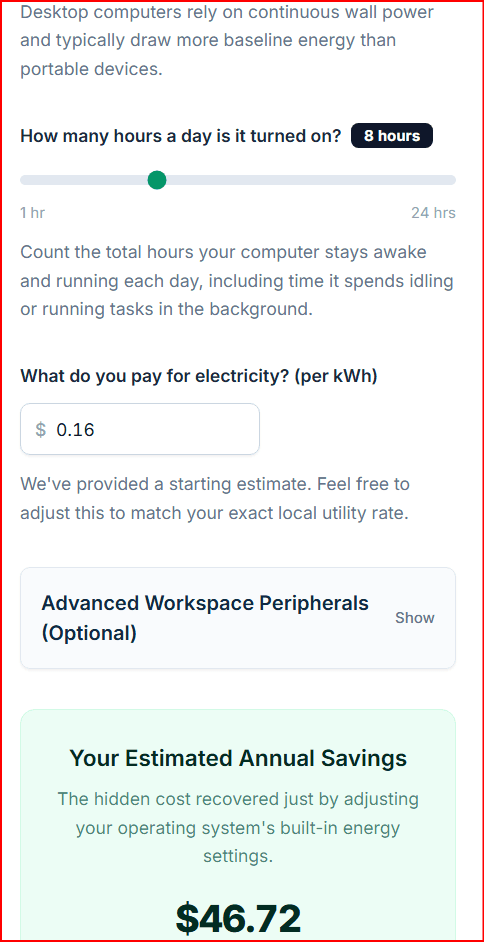
Open the Power Mode Energy Savings Calculator and treat it as a structured worksheet:
- Pick desktop or laptop presets honestly—docked laptops with external GPUs behave more like desktops.
- Set awake hours to total powered-on time, not just active typing (background updates count).
- Enter your real $/kWh from a recent bill (total cost ÷ total kWh).
- Expand Advanced Workspace Peripherals and check what is actually on your desk—compare the workspace cost card to the savings card.
- For overnight behavior, do the sleep/shutdown math in this article mentally—or on paper—because the tool does not yet model those hours on the PC line.
Explore more Computer & OS calculators as the category grows; this post is the interpretive layer for the power-mode tool, not a substitute for measuring your own gear if you need audit-grade numbers.
A practical priority list
If you want the highest return on attention without obsessing over every watt:
- First: Stop leaving the PC fully awake overnight if it sleeps or hibernates reliably on your hardware.
- Second: Let monitors sleep aggressively; they are often the largest non-PC draw while you are nominally "at work."
- Third: Toggle power saver for long light-use days—it is free money, just usually smaller than the first two levers.
- Fourth: Audit always-on accessories (dock, printer, old speakers) for warm idle you do not need.
Power mode is worth using. It is just not the whole story—and now you can read the two numbers on the results card without wondering why they disagree.
Summary
- Power mode savings apply to the PC during awake hours only—the watt gap between performance and power-saving presets.
- Workspace cost adds high-performance PC draw plus any peripherals you select; it explains why monitors and docks can outweigh the savings number.
- Overnight behavior (sleep, hibernate, shutdown) is not in the savings formula but often moves more kWh than the daytime toggle.
- Use the calculator for the PC slice; use habits and peripheral choices for the rest of the bill.