Windows 11 Can End a Task Directly From the Taskbar
Once the command is on, the taskbar icon you already see can stop that app, and Task Manager can stay closed. A normal close is still the path that lets the app ask you to save.
Published on

Windows 11 can put a command named End task on the right-click menu of an app that is already open on the taskbar. The command stays out of that menu until you turn it on. After it is on, you right-click the app’s icon and choose End task, and Windows stops that app without opening Task Manager.
The menu item beside it, Close window, is a different request. Close window asks the app to shut its window in the ordinary way, which is the moment a working app can still hold up a save box. End task is a different command. Microsoft’s note (opens in a new tab) on the feature says the taskbar option stops the task, and that it no longer shows a “not responding” box before it does so.
Disclaimer: This is general education about a Windows 11 setting, not a repair plan for one computer. Menus can differ by version, and a PC managed by an organization can have the Advanced toggles missing or disabled. Stop an app only when you are ready for unsaved work in that app to disappear.
Close window and End task do different jobs
Both names can show up when you right-click a running app’s taskbar icon, once End task has been turned on, and they are easy to treat as twins because they sit in the same little menu. They are not twins. One of them invites the app to leave. The other one stops the app.
Swipe horizontally or scroll to the right to view the full screenshot.
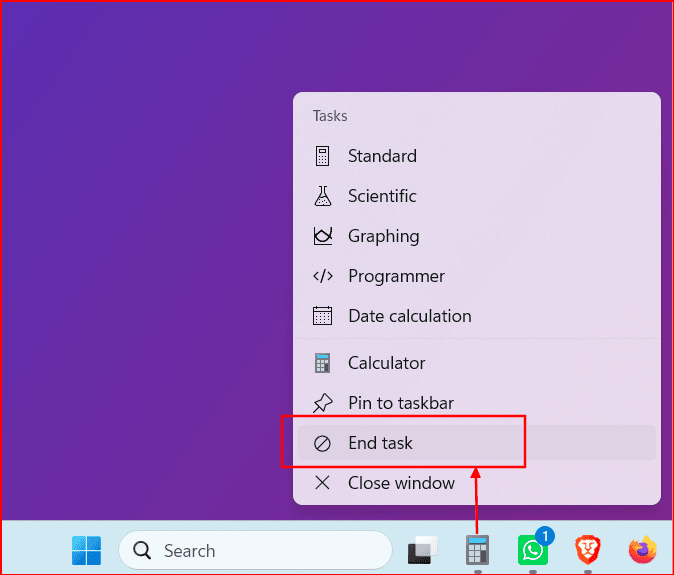
Close window lets the app finish
Close window is the everyday quit. It is in the same family as the X on a window and the Alt+F4 key press: Windows asks the app to close, and a healthy app gets to run its own goodbye. That goodbye is where a letter, a spreadsheet, or a half-finished form can ask whether you want to save. If the app is still paying attention, this is the command that gives it that chance.
End task stops the app
End task is the stop. Microsoft’s description of the setting is: enable End task in the taskbar by right-click. Microsoft’s July 2024 note says the option stops the task, and that the old “not responding” box no longer appears first. A save box that Close window would have shown may never get drawn.
A frozen app is the moment this difference matters most, because a frozen app often ignores Close window, the X, and Alt+F4. End task is not only for that case. It can also stop an app that is still running, as long as that app is on the taskbar.
Task Manager already stops a task. The taskbar is the other door.
Task Manager is the full workshop. You open it, find the app in the list, and choose End task there. Microsoft’s own help for an Outlook that is not responding, and for an Edge that is not responding, uses that path: open Task Manager, select the app, and end the task so the app closes. The taskbar command has the same name, and Microsoft’s update note says it stops the task. The outcome you are after is the same one: that app stops.
What you can count on
You can count on the job, which is stopping the app you pointed at, and you can count on the name, which is End task in both places. Microsoft has not published a parts list that proves every unseen step inside Windows is identical, so this guide does not invent one. What it will say, because Microsoft did say it (opens in a new tab), is that the taskbar option stops the task, and that it does so without first showing the “not responding” box.
What you get to skip
The whole point of the taskbar command is that the app is already in front of you as an icon. You do not open Task Manager, you do not scan a list of names that may not match the window title, and you do not have to decide which row is the program you were just looking at. Right-click the icon. End task. Task Manager can stay closed.
Task Manager still has other rooms. Its Startup apps list, for example, is about programs that open when you sign in, which is a different question from stopping an app that is stuck right now. That list is covered in Windows 11 startup apps.
Close window, taskbar End task, and Task Manager
Swipe horizontally or scroll to the right to view the full table.
| Compared | Close window | End task on the taskbar | End task in Task Manager |
|---|---|---|---|
| What it does | Asks the app to quit | Stops the app | Stops the app |
| Save prompt | A working app can still ask you to save | That save box may never get drawn | Same stop, so unsaved work in that app can go |
| Where you find it | Right-click the app’s taskbar icon | That same menu, after the switch is on | Open Task Manager and find the app in the list |
| Available by default | Yes. It is the ordinary close | No. The switch starts off | Yes. Task Manager is already the other door |
When the taskbar stop is the handy one
The app will not take a normal close
You click the X, you try Close window, and the window sits there with a faded title bar or a spinning cursor. That is the case the command earns its place. The app is not accepting the polite request, and the taskbar End task stops it from the icon you were already using, without the “not responding” box that Microsoft’s July 2024 note says no longer appears first.
You already know which icon it is
The useful part, even when the app is only misbehaving rather than fully frozen, is recognition. The icon on the bar is the program you opened. In Task Manager, that same program can show up under a name that does not match the window, and you can skip that matching when you already know the icon. If the wrong icon would be a costly mistake, Task Manager’s list is still the place to read the names slowly. If you are sure of the icon, the taskbar is the shorter stop.
Closing the window left the app running
Some apps are built so that closing the window only sets them aside. A small icon near the clock can keep the app awake for alerts. Close window did its job, which was the window. If that app is still on the taskbar, End task is the command for the task itself, when what you want is for that app to actually stop. If the app has left the taskbar, and only that small icon near the clock remains, there is no taskbar icon to right-click, so this menu is not there. Task Manager is the list for a task with no taskbar icon.
A stuck window is also a poor reason, by itself, to shop for a new computer. Stopping the app puts you back in the seat. If the machine is slow on ordinary days, that is a separate measurement, and the Is a Faster Computer Worth It? calculator is the place for the minutes and the money.
Why Windows 11 leaves the command off
The switch starts off, and End task stays out of the right-click menu until you turn it on. On Windows 11 version 25H2 and later, Microsoft puts that switch on the Advanced page. Microsoft’s July 2024 note applies to Windows 11 Enterprise and Education, version 22H2, and to version 23H2, and it names that switch under Settings → System → For developers. Either way, it sits with settings you turn on when you want them. The line under the name says what the switch does: enable End task in the taskbar by right-click. Until you turn it on, a normal right-click does not include End task.
There is a practical reason to leave it that way. In July 2024, Microsoft changed the taskbar command so it no longer shows a “not responding” box before it stops the task. That is welcome when a window is frozen and you already know you want it stopped. It is a clumsy everyday quit, because the app may not get to ask about unsaved work. Leaving the switch off keeps End task out of the menu, so a normal right-click cannot stop the app by accident. You add that command only when you turn the switch on.
What you can lose when you use it
Unsaved work in that app
Because End task stops the app instead of asking it to close, a document that had not been saved can vanish with the window. Close window is the command that still lets a working app offer a save. End task is the command for when that offer is no longer coming, or for when you have already decided the work in that app can go. If the writing matters, save it before you reach for the stop, or use Close window while the app can still respond.
Other windows that belong to the same app
Close window is the narrower request, aimed at the window. End task is the command Microsoft’s July 2024 note describes as stopping the task. If that icon has more than one window open, the Microsoft notes this guide uses do not say which of those windows go with the task, so this guide will not guess.
Jobs the shortcut does not do
The taskbar command does not replace Task Manager. It does not show you startup weight, memory, or a process that never put an icon on the bar. When you need the list, open the list. When you already have the icon and you want that app stopped, the taskbar is enough.
Where Windows 11 keeps the switch
Windows 11 version 25H2 and later
On Windows 11 version 25H2 and later, the old For developers settings show up under Settings → System → Advanced. End task sits there under Taskbar. Turn it on, then right-click a running app’s taskbar icon. Close window and End task should both be in that menu, and they remain different commands after they share a menu. A PC managed by an organization can have these toggles missing or disabled.
Windows 11 Settings: System → Advanced → End task
Swipe horizontally or scroll to the right to view the full screenshot.
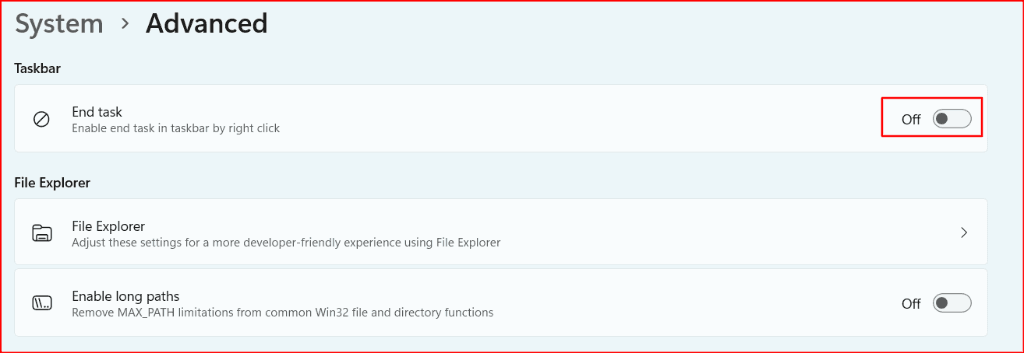
Windows 11 22H2 and 23H2 in the July 2024 note
Microsoft’s July 2024 note applies to Windows 11 Enterprise and Education, version 22H2, and to Windows 11 version 23H2. On those, the switch is under Settings → System → For developers, and the menu item exists only after the switch is on. That note does not name a path for version 24H2.
Summary
- Windows 11 can add End task to a right-click on a running app’s taskbar icon. The switch starts off.
- Close window asks the app to quit, so a working app can still offer a save. End task stops the app, and Microsoft dropped the “not responding” box that used to appear first.
- Task Manager’s End task is the other door to that same stop. The taskbar door lets you skip the process list when you already know the icon.
- It is handy when a window will not close, when you are sure of the icon, and when closing the window left the app on the taskbar. Unsaved work in that app can disappear.
- On Windows 11 version 25H2 and later, the switch is under Settings → System → Advanced. A PC managed by an organization can have those toggles missing or disabled. Microsoft’s July 2024 note places the switch under For developers for Windows 11 Enterprise and Education, version 22H2, and for version 23H2.