Windows 11 Memory Integrity (VBS): Keep It On or Turn It Off?
What this Windows 11 security setting does, where to find it, what you trade if you turn it off, and how to tell when a faster computer is the better fix.
Published on

If your Windows 11 PC feels slow, a common tip shows up fast: turn off Memory integrity (part of a security layer often labeled VBS). Games feel snappier. Apps open a little quicker. The advice sounds free.
It is not free. You are trading a security protection for a speed bump. The missing question—the one most “turn it off for FPS” posts skip—is whether a faster computer with the switch left on beats disabling the shield on a machine that already feels tired.
This guide explains the setting in everyday terms, shows you exactly where it lives, and walks the decision with the same cost-per-hour logic as our Is a Faster Computer Worth It? calculator. No lab coat required.
What Memory integrity (VBS) actually is
Think of Memory integrity as a locked room inside Windows. It keeps the most sensitive parts of the system harder for malware to mess with. Microsoft and Windows Security call the control Memory integrity. Under the hood, that feature sits in a broader bucket people shorten to VBS (virtualization-based security). You do not need the acronym to use the switch—you only need to know it is a security-on vs. feel-faster trade.
When Memory integrity is on, Windows spends a little more work protecting itself. On some PCs that cost is hard to notice. On others—especially older CPUs, gaming rigs, or machines that are already underpowered—the PC can feel heavier: longer boots, hitchy games, slower heavy apps.
When it is off, that extra protection layer steps aside. You may feel a speed gain. You also give up the hardening that switch was meant to provide. That is the whole deal in one sentence: speed loan, paid in security.
Swipe if needed — large labels stay readable on a phone.
Where to find the switch in Windows 11
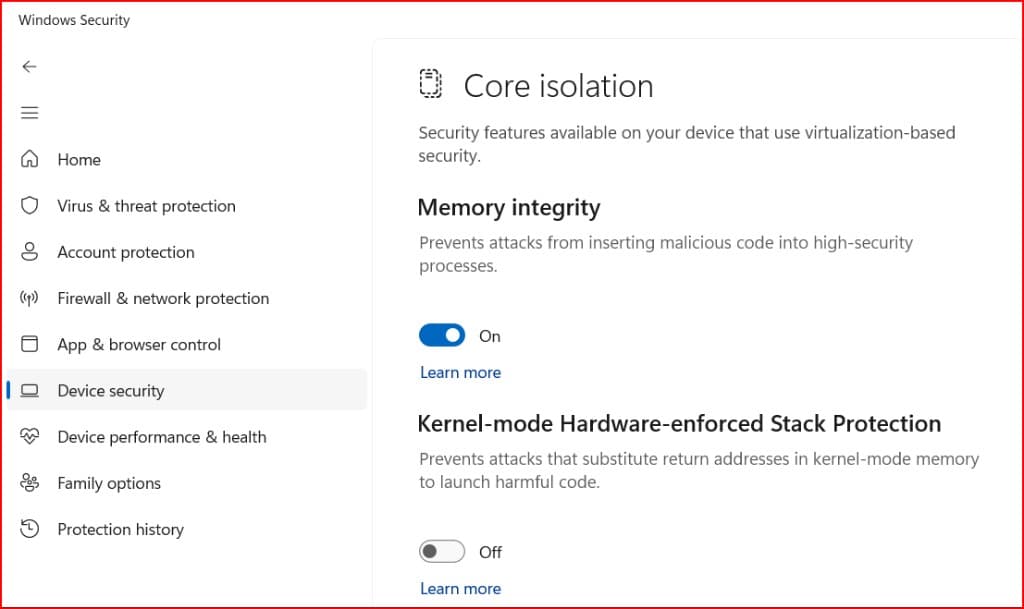
You do not need a command prompt for this. The control lives in Windows Security under Core isolation.
- Open Settings.
- Go to Privacy & security → Windows Security.
- Click Open Windows Security.
- Open Device security.
- Under Core isolation, open Core isolation details.
- Find the Memory integrity On/Off switch.
Changing it usually asks for a restart. If the switch is greyed out, Windows is blocking the change (policy, unsupported setup, or a driver conflict)—fix that before forcing anything.
Windows Security: Core Isolation & Memory Integrity
Swipe horizontally or scroll to the right to view the full screenshot.
Keep it on vs. turn it off — what you are really choosing
Speed tips and security tips often pull in opposite directions. Use this table as a decision map for your desk—not a one-size rule for every PC.
| If you… | You gain | You give up | Best fit when… |
|---|---|---|---|
| Keep Memory integrity ON | Stronger Windows hardening against some malware paths | Possible extra wait / hitch on weaker or busy PCs | You handle money, work files, or shared family machines |
| Turn Memory integrity OFF | Often snappier feel (games, boots, heavy apps—varies) | That hardening layer for as long as it stays off | You want the possible speed bump and accept losing that shield |
| Keep ON + buy a faster PC | Speed back without disabling the shield | Cash (and setup time) for hardware | Lag is large enough that cost-per-hour-saved looks good |
Notice the third row. That is the Definitive Calc angle. Disabling Memory integrity is only one way to buy speed. Upgrading the machine is another—and it does not require you to weaken the security setting to feel the win.
When a faster computer beats turning it off
Here is the claim, stated carefully: a faster computer beats turning Memory integrity off when the lag you still feel with security on is large enough that buying hardware back pays for itself in recovered time—while leaving the shield on.
That is not vibes. It is the same math as our upgrade calculator:
- Estimate daily minutes you wait on this PC (boots, freezes, heavy local jobs)—with Memory integrity left on.
- Include a focus tax if freezes knock you off task (phone scroll, lost thread).
- Enter net upgrade cost (price minus trade-in) and how many years you will keep the new machine.
- Compare cost per hour saved to what an hour of your time is worth.
If cost per hour saved is below your hourly value, the upgrade is buying time cheaper than you sell it—and you can keep Memory integrity on. If the lag with security on is tiny, spending $1,000+ just to avoid touching a toggle is usually the wrong move; live with the small hitch, or accept the security tradeoff with eyes open.
Example (illustrative, not a lab result): you still lose about 15 minutes a day to machine wait with Memory integrity on. Over a work year that is dozens of hours. Plug that lag, your wage, and a realistic net PC price into the faster computer calculator. A green “worth it” verdict means hardware is the cleaner fix than turning the shield off. A clear “not worth it” verdict means do not buy a new PC to solve a small annoyance—and think twice before gutting a security control for the same small annoyance.
If your upgrade verdict is borderline, tighten the lag input first. Our guide on measuring computer lag before you upgrade is built for that step.
Swipe if needed — large labels stay readable on a phone.
What turning it off does not fix
Memory integrity is not the villain behind every slow day. Turning it off will not repair a failing drive, 16 GB of RAM drowning under dozens of browser tabs, a failing Wi-Fi router, or a laptop cooked on a pillow. If the machine is thrashing for those reasons, you are spending security for a speed fix that never arrives.
Before you flip the switch, check the boring stuff: free disk space, startup apps, whether the PC is choking on heat. For overnight power and “performance” power modes that change the bill more than they change security, see our guide on power mode vs. monitor and overnight power—and run the Power Mode Energy Savings calculator if electricity cost is part of your desk math.
If the PC is also near end of support or you are weighing a full Windows 11 path vs. replacement, pair this article with Windows 11 upgrade vs. new PC (TCO).
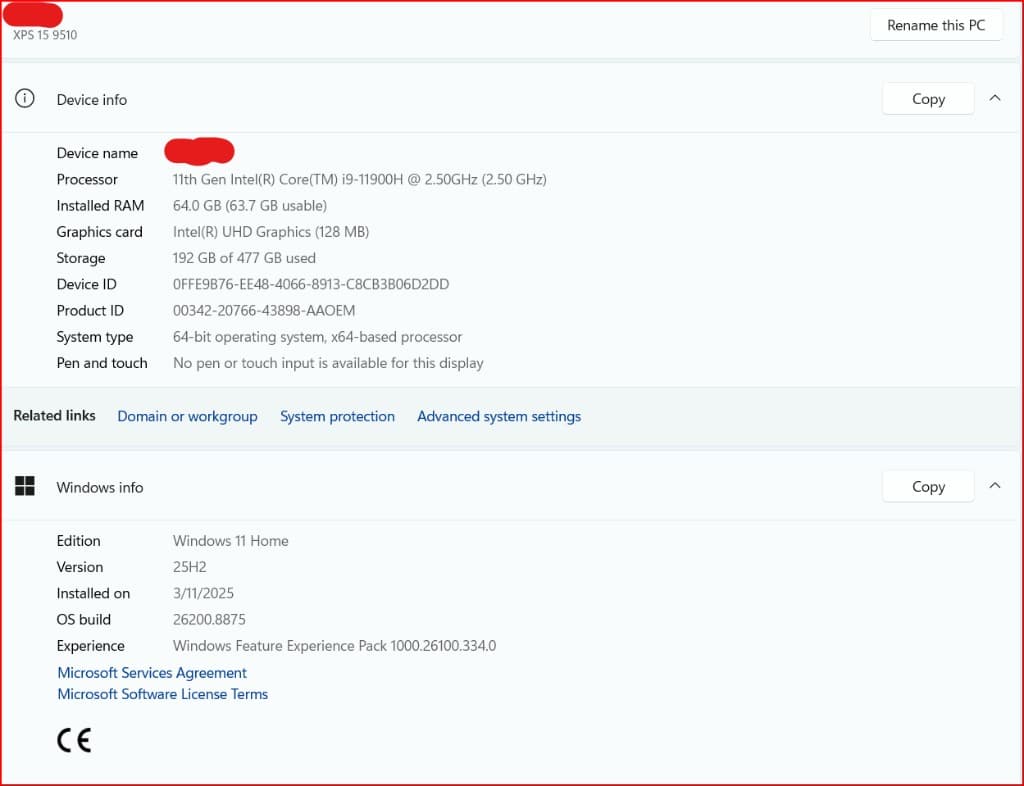
Windows 11 About: Edition, Version & OS Build
Swipe horizontally or scroll to the right to view the full screenshot.
A simple rule you can actually use
Default rule of thumb: leave Memory integrity on. Treat “turn it off” as a conscious risk choice, not a free performance pack.
If the PC still feels slow with it on, do not start at the security switch. Start at the upgrade math. When recovered hours pay for the machine, buy speed and keep the shield. When they do not, either live with a small hitch or turn the setting off knowing what you spent.
Swipe if needed — large labels stay readable on a phone.
Summary
- Memory integrity (VBS) is a Windows 11 security switch: on = stronger hardening (can feel slower on some PCs); off = often snappier feel, paid for by dropping that shield.
- Find it under Settings → Privacy & security → Windows Security → Device security → Core isolation details.
- A faster computer beats turning it off when the lag you still feel with security on is large enough that cost-per-hour-saved beats what your time is worth—so you buy speed without disabling the control.
- If lag is small, do not spend big on hardware—and think twice before turning the setting off for a minor speed bump. Fix disk, RAM, heat, and power habits first when those are the real drag.