How to Tell What Wi-Fi You're On—and Whether to Upgrade
Find the version Windows shows, check if your router and real speed match it, and decide between better Wi-Fi and a new PC.
Published on

Laptops love badges. Wi‑Fi 6. Wi‑Fi 6E. Wi‑Fi 7. The box sounds fast. Your video call still freezes. That gap is why “what Wi‑Fi am I on?” is only half a useful question.
Think of a Wi‑Fi 6 or Wi‑Fi 7 badge like a fast sports car. The car can be built for speed. If the road is dirt and the garage is locked, you are not racing. Windows can show a modern protocol while your router, walls, or internet plan are still the bottleneck.
This guide shows you what Windows reports, how to sanity-check it in three layers (laptop protocol, router/mesh, and real speed), when the badge is mostly theater, and when fixing Wi‑Fi beats buying a faster computer.
First: see what Windows says you are using
You do not need a utility download for the first answer. Windows already labels the connection.
- Click the network icon on the taskbar (or open Settings → Network & internet → Wi‑Fi).
- Open your current network, then open Hardware properties / Properties (wording varies slightly by Windows 11 build).
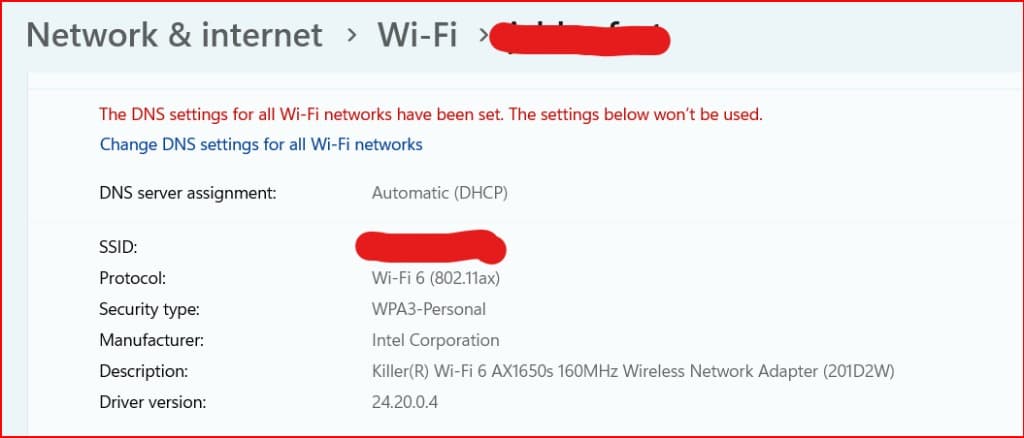
- Find Protocol (and nearby Link speed / Receive–Transmit rates if shown).
Rough decoder for the Protocol line:
- 802.11n → Wi‑Fi 4 era
- 802.11ac → Wi‑Fi 5
- 802.11ax → Wi‑Fi 6 (or 6E if you are on the 6 GHz band)
- 802.11be → Wi‑Fi 7
Write that down. Then do not stop. Protocol is the sports car—not the road report.
Windows Wi‑Fi Properties: Protocol Line
Swipe horizontally or scroll to the right to view the full screenshot.
The three-layer check (this is the real test)
A restaurant can have a chef who cooks in minutes and a waiter who walks in slow motion. Wi‑Fi is the same idea: three layers (laptop protocol, router/mesh, and real speed) have to agree before the badge matters.
Layer 1 — Your laptop (protocol)
Protocol from Windows. That is “what language can this machine speak?”
Layer 2 — Your router or mesh
The access point has to speak a matching (or newer) language on a band you can actually use. A Wi‑Fi 7 laptop talking to a tired Wi‑Fi 5 box will behave like Wi‑Fi 5. Check the sticker, app, or admin page for Wi‑Fi 6 / 6E / 7 support—and whether you are on 2.4, 5, or 6 GHz.
Layer 3 — Real speed on your desk
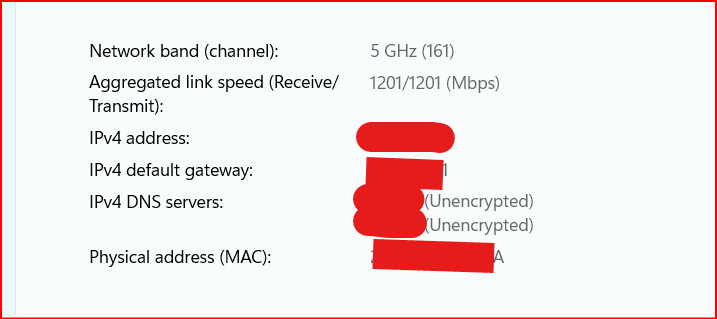
Open the same Wi‑Fi status area and note Link speed (Receive / Transmit) if Windows shows it. Then run one ordinary speed check (your ISP tool or a trusted speed test) on that same Wi‑Fi, same room, VPN off if you can.
Link speed is the “posted speed limit” between laptop and router. A speed test is closer to “how fast the trip felt.” They will not match perfectly. Huge gaps are the clue.
Swipe if needed — large labels stay readable on a phone.
Windows Wi‑Fi Properties: Link Speed
Swipe horizontally or scroll to the right to view the full screenshot.
When Wi‑Fi 6 or 7 is mostly theater
Marketing sells the laptop sticker. Your home sells physics. Theater looks like this:
- New laptop, old router — badge says 6 or 7; airwaves behave like the older box.
- Strong signal next to the router, weak two rooms away — walls and distance beat the Wi‑Fi generation number.
- Fast Wi‑Fi, slow internet plan — the driveway is wide; the street is one lane.
- VPN, crowded apartment bands, or a dying drive — the wait is not “because you lack Wi‑Fi 7.”
For cloud bills and “hidden pipes” on the internet side of work, our cloud egress costs guide covers a different bottleneck. At home, start with the three layers above (laptop protocol, router/mesh, and real speed) before you chase a new standard.
Swipe if needed — large labels stay readable on a phone.
What to do with what you find
Use this as a map—not a shopping dare.
| What you see | Likely story | Sensible next step |
|---|---|---|
| Protocol is old (n/ac) | Laptop (or that band) is behind | USB/adapter or newer laptop only if Layer 3 (real speed) is also weak |
| Laptop has Wi-Fi 6/7, router is old | Badge theater | Router or mesh first—not a new PC |
| Fast link, slow speed test | ISP, VPN, server, or disk | Test wired if you can; hold off on a new router or adapter |
| Fine near router, bad elsewhere | Coverage problem | Mesh / better placement before Wi-Fi 7 hype |
| Everything looks fine, PC still waits | Not a Wi-Fi story | Measure machine lag; run upgrade math |
Bad Wi‑Fi vs. a new laptop — run the money question
If your day dies in spinners and reconnects, that lost time has a price—same idea as our measure lag before you upgrade guide. You do not need a lab notebook; an honest ballpark is enough to stop guessing with your wallet.
A simple way to rough it out:
- For a few normal workdays, notice how many minutes you actually sit through Wi‑Fi stalls (reconnects, frozen calls, “waiting for network”). A gut sense of annoyance is real—but a time estimate is what you can compare to a price tag.
- If a freeze dumps you into your phone or another tab, add a small focus tax—extra minutes to get back into the task. That recovery cost is easy to undercount and often larger than the stall itself.
- Turn those minutes into hours over a year, then compare a router/mesh price to a new laptop price with cost per hour saved. The cheaper fix that removes the real wait usually wins.
If Layer 2 (router / mesh) or coverage is the weak link, a $150–$300 mesh often buys back more day than a $1,200 laptop with the same sad Wi‑Fi path. If Wi‑Fi checks out and the machine itself is the wait, do not punish your wallet for the wrong bottleneck—and do not blame Memory integrity or Wi‑Fi 7 marketing by default (security switches are a different trade).
Swipe if needed — large labels stay readable on a phone.
What about battery and power?
Newer Wi‑Fi can be more efficient in the lab. On a real desk, the screen, the CPU, and whether the PC sleeps overnight usually move the electricity needle more than “Wi‑Fi 6 vs. 7.” If bill math is your rabbit hole, use the Power Mode Energy Savings calculator and our power mode vs. monitor and overnight power guide—not a Wi‑Fi generation chase.
A simple rule you can keep
Read the Protocol. Trust the three layers (laptop protocol, router/mesh, and real speed). Upgrade the weak one. If Wi‑Fi is healthy and the computer still steals minutes, that is a machine problem—run the upgrade math instead of buying another Wi‑Fi 6 or Wi‑Fi 7 badge.
If you are also weighing a whole Windows upgrade path versus a new PC, pair this with Windows 11 upgrade vs. new PC (TCO).
Summary
- Windows shows your Wi‑Fi generation under network Protocol (ax ≈ Wi‑Fi 6, be ≈ Wi‑Fi 7)—that is only Layer 1 (laptop protocol).
- Check the router/mesh (Layer 2) and a real speed test (Layer 3) too. The weakest layer is what you feel.
- A fancy laptop badge with an old access point is usually theater— fix coverage or the router before you buy another PC for “Wi‑Fi.”
- When the path is fine but the machine still waits, use cost-per-hour-saved —not a newer Wi‑Fi logo—as the shopping test.