Cookies, localStorage, and sessionStorage: What Gets Saved in Your Browser, How Long It Lasts, and Why a Cookie Banner Is Not the Whole Story
Three different ways a site can remember things on your device—what each one does, and why clicking Accept on a cookie notice does not reset all of them.
Published on

You click Accept on a cookie notice and figure you are done—the site has permission, or you have said no, and that is that. But websites can remember things in more than one way. Cookies are the name you hear in the banner, yet browsers also offer two other built-in spots called local storage and session storage. They are separate drawers. Accepting cookies does not automatically empty the others.
This article compares those three in everyday terms—what each one stores, how long it sticks around, and why the cookie popup on a site is often not the whole privacy picture. If you want more background on how websites talk to servers in the first place, our API overview and HTTP caching guide cover related ideas from the delivery side.
Three storage types, three everyday jobs
Before the technical labels, here is what each one is for on a site you already use. The same website often uses all three at once for different chores.
Cookies are best when the server needs to recognize you on the next request—sign-in sessions, shopping carts, language picked on the server side. Local storage suits preferences the page reads locally—dark mode, dismissing a tooltip, or remembering that you already answered a cookie banner. Session storage suits temporary state for this visit only—filters on a results page, step two of a form, scroll position in a long wizard.
A quick scenario: returning to an online shop
You add shoes to a cart and leave. A cookie may tell the shop's server which cart is yours when you come back tomorrow. While you browse, session storage might remember that you sorted by price in this tab—close the tab and that sort resets. Local storage might remember that you chose list view instead of grid view across visits, or store the fact that you clicked Accept on the cookie notice so the bar stays hidden. None of those jobs replace the others; they overlap.
| You notice… | Likely storage | Why |
|---|---|---|
| Still signed in after closing the browser | Persistent cookie | Server session ID stored with an expiry date |
| Signed out when you close the browser only | Session cookie | Cookie deleted when the browsing session ends |
| Dark mode stays on next week | Local storage (often) | Page reads a saved theme flag locally |
| Filter resets when you close the tab | Session storage (often) | Tab-scoped data cleared with the session |
| Cookie banner never shows again | Local storage (common) | Site saves consent choice outside cookies |
| Page loads faster on repeat visit | HTTP cache (different thing) | See our caching guide—not cookies or Web Storage |
What are cookies?
A cookie is a tiny note your browser keeps for a website—a label and a value, like logged_in=yes or language=en. When you return, the browser hands that note back so the site recognizes you: your shopping cart, your sign-in, your preferred language. The site's server asks the browser to save the note; the browser sends it again on later visits. That pattern is documented in the MDN cookie guide.
The note travels with every visit
That hand-back-on-each-visit behavior is what makes cookies different from the other two storage types. Cookies can tag along whenever your browser talks to that site—even for small background requests—so sites try to keep them short. That is separate from HTTP caching, which is more like the browser keeping a photocopy of a whole page; cookies are more like a sticky note clipped to every envelope.
First-party vs. third-party cookies
A first-party cookie belongs to the site in your address bar—the shop you visited. A third-party cookie belongs to another domain embedded on the page (often an ad or analytics provider). Privacy settings and browser defaults now limit third-party cookies heavily; that is why you hear about "tracking" in cookie discussions while your bank login cookie may still work fine. Local and session storage are also scoped to the site that wrote them—they do not automatically leak to other domains the way some third-party cookies once did.
Temporary cookies vs. long-lasting cookies
Some cookies expire when you close the browser (often called session cookies). Others stick around until a set date—months or years—unless you delete them (persistent cookies). Browsers also cap how big each cookie can be (roughly a few kilobytes) and how many one site may set. That is one reason heavy data moved into local storage instead.
What are local storage and session storage?
Think of these as two memo pads built into your browser for a specific website. The page can write short notes (settings, flags, draft text) and read them back later. They are part of what developers call the Web Storage API—but you do not need that term to use the idea. Unlike cookies, these notes stay on your device unless the site sends them; they are not automatically mailed to the server on every page load.
Local storage: the long-term notepad
Local storage keeps data until something deletes it: the site removes it, you clear that site's data in browser settings, or you wipe browsing data. Close the tab, come back next week—the values are usually still there. Private or incognito windows are the exception; that data goes away when you close the last private window.
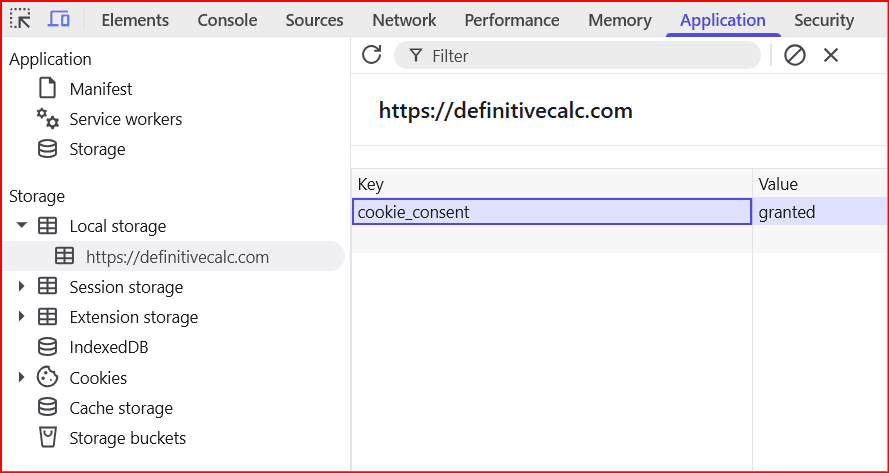
Sites use it for things like dark-mode preference, a "do not show this tip again" flag, or half-finished form text. Here is the twist many people miss: the cookie banner may talk about cookies while saving your Accept or Decline choice in local storage so the popup does not appear every time.
Swipe horizontally or scroll to the right to view the full screenshot.
Session storage: the shift clipboard
Session storage is the short-shift version. According to MDN, it lasts only while that tab or window is open—close it and the notes are gone. Handy for a multi-step checkout or a filter you only wanted for this visit. Each tab gets its own pad, even on the same site.
The two-tab test (try this yourself)
Open the same website in two tabs. Change something that uses local storage (like theme)—both tabs usually match after a refresh because they share one pad for that site. Change something in session storage in tab A only; tab B will not see it. That single experiment explains why developers pick one or the other—and why clearing "cookies" in a banner does not reset both tabs' session data.
Everyday analogy: the gym locker desk
Cookies are the wristband the front desk scans every time you walk in—the building always knows you checked in. Local storage is your long-term locker combo—you keep the same one visit after visit until you change it. Session storage is a day locker: empty it when you leave; tomorrow you start fresh. The cookie notice at the entrance is only about the wristband policy—not whether your day locker was cleared.
| Aspect | Cookies | Local storage | Session storage |
|---|---|---|---|
| Who writes it? | Usually the website server; sometimes the page | The page while you browse | The page while you browse |
| Sent to the site automatically? | Yes, on later visits | No | No |
| How long it lasts | Until browser close or expiry date | Until you or the site clears it | Until you close the tab |
| How much fits | Small (a few KB per note) | Much larger | Much larger |
Why a cookie banner is not "all storage"
Cookie popups became popular when tracking cookies were in the news, so the word cookie turned into shorthand for "website privacy." In practice, though, a site can remember you in several ways—not only cookies but also local storage and other browser features. A banner that only manages tracking cookies may still leave local storage exactly as it was.
Different drawers, different switches
Fancy consent tools on big sites often connect "Analytics" or "Marketing" toggles to specific cookies and scripts. Local and session storage are wired separately unless the developer built that in. Decline tracking cookies, and you may still see entries under local storage in your browser's site settings. That is why checking only the banner text can mislead you about what is still saved.
If you run a site, making the consent box easy to find matters for accessibility—our semantic HTML and landmarks guide covers labeling page regions so screen reader users can jump to the notice. That helps people find the banner; it does not by itself decide which storage types the site uses after you click Accept.
Blocking cookies is not always enough
When you block cookies in browser settings, some browsers also limit other saved data—but not always, and not the same way everywhere. A site may still write to local storage until you clear that site's data or block its scripts. VPNs change your network path, not what is saved inside the browser; our multi-hop VPN guide covers that separate layer if you are curious.
Not the same as cache or saved passwords
Your browser also keeps cached files (speed), saved passwords (login vault), and sometimes IndexedDB (heavier app data). None of those are the same as cookies or Web Storage. Clearing "cookies" in a banner or even in one settings checkbox might not touch cache or passwords—another reason people feel a site still "knows" them after they thought they opted out.
Privacy law note (not legal advice)
Laws such as the GDPR in the EU, CPRA in California, and other regional rules may cover cookies and similar tracking tools—not just the word "cookie" on a banner. Rules differ by country and change over time. This article describes how browsers work, not what your business must do legally. Talk to a qualified lawyer for compliance; use your browser's help docs or MDN if you need technical confirmation.
Application States: Preserving Calculator Progress
For interactive tools—like loan calculators or step-by-step estimators—how a website saves your progress completely changes how nice it is to use. If your phone browser puts a tab to sleep while you are half-done, a total page reload can instantly wipe out all the numbers you just typed in.
To fix this without slowing down the site, developers can use a simple script that saves your raw entries straight to localStorage right inside your browser. The next time the page opens or refreshes, the calculator checks that local storage slot, pulls your old numbers back in, and sets up the screen exactly where you left off.
📐 How Smart Tools Split Up Storage Tasks
- Saving Your Settings (localStorage): Keeps your baseline numbers (like a loan amount or physical metrics) safe on your device so the inputs don't reset to zero if you accidentally refresh the page.
- Comparing Quick Options (sessionStorage): Perfect for holding temporary calculations while you compare two options in the same tab, without permanently overwriting your main numbers.
- Privacy-First Speed: Because this data stays entirely on your device and isn't sent back and forth to a server over the internet, calculations load instantly and keep your personal inputs private.
How to inspect and clear what a site stored
The everyday fix is in your browser settings. In Chrome, Edge, or Firefox, look for privacy or site settings, find the website in question, and choose something like Clear data or Delete cookies and site data. That usually wipes cookies and local storage together for that site. If you only block third-party cookies—a common default—you limit cross-site tracking but may still leave first-party local storage from your bank, email, or newsletter untouched.
Step-by-step: reset one site in Chrome
Click the lock or tune icon left of the address bar → Site settings → Clear data (wording varies slightly by version). Or open Settings → Privacy and security → Delete browsing data → choose Cookies and other site data and limit the time range if you only want a fresh start for recent sites.
Step-by-step: reset one site in Firefox
Click the shield or lock icon → Clear cookies and site data for this site. For everything stored, Settings → Privacy & Security → Cookies and Site Data → Manage Data, then search for the domain and remove it.
For the curious: peek under the hood
Power users can open developer tools (right-click → Inspect, or F12 on many keyboards). In Chrome, open the Application tab; in Firefox, open Storage. Expand the site under Cookies, Local Storage, and Session Storage—you will see keys and values side by side. That is the fastest way to answer "I clicked Accept—why is cookie_consent or theme still listed here?"
Website owners who care about speed and bandwidth often measure caching separately—see our cache hit ratio guide and cloud egress calculator. Cookies and storage answer a more personal question: what your browser remembers about you the next time you visit.
| Symptom | What to try |
|---|---|
| Banner keeps coming back | Local storage may not have saved consent—or you cleared only cookies |
| Still logged in after "clear cookies" | Persistent login cookie or saved password—not just session storage |
| Filter reset after closing tab | Expected if the site used session storage |
| Site "forgot" me but loads fast | Cache still warm; different from storage—see caching guide |
| Want a full reset for one shop | Clear site data for that domain in browser settings |
In short
- Cookies are small notes the browser saves for a site and sends back on later visits—useful for sign-in, carts, and preferences.
- Local storage and session storage are memo pads on your device; the page reads them locally—they are not mailed to the server automatically.
- Local storage lasts until cleared; session storage disappears when you close the tab; use the two-tab test to see the difference.
- A cookie banner usually targets cookies (and related scripts)—not local storage, session storage, cache, or saved passwords unless the site wired them together.
- To reset a site, use browser clear site data; developer tools list all storage types if you want to inspect keys like consent or theme flags.