Semantic HTML, Landmarks, and ARIA: What They Are and Why Accessibility Needs Them
A straightforward guide to page structure and accessibility—whether you're learning the basics, reviewing a site, or fixing issues that accessibility scanners flag.
Published on

Open any modern website and you will see headers, menus, articles, and footers—but what you see on screen is only half the story. Behind the layout, browsers pass structure to assistive technology so people using screen readers or voice control are not stuck listening to every link in the menu just to reach the article. Semantic HTML is the everyday name for tags that describe what a block is (navigation, main story, footer). Landmarks are the big signposts screen reader users can jump to directly. ARIA—short for Accessible Rich Internet Applications—is a set of extra labels you add when plain HTML cannot say enough.
These three ideas work as a team, not as rivals. Nail the structure first and many automated accessibility reports get quieter before you chase color or contrast issues (contrast still matters; our WCAG contrast guide covers that lane). This guide stays straightforward so you can read a scanner report, talk with a developer, or spot fixes on your own site without a computer science degree.
What is semantic HTML?
Semantic HTML means choosing tags that describe what something is, not only how it should look. A real button element behaves like a button for keyboard and screen reader users; a generic box with a click handler often does not. Your site menu belongs in a navigation element, not a pile of unlabeled boxes that only look like a menu because CSS lined them up.
Meaning first, styling second
CSS still controls colors and layout; semantic tags tell browsers, search engines, and assistive technology what role a block plays. That helps everyone: search engines can tell your main article apart from sidebar promos, and screen readers can announce "navigation" when someone enters the menu instead of a vague "group."
Tags you already see on well-built sites
Common semantic elements include <header>, <nav>, <main>, <article>, <section>, <aside>, and <footer>. Headings should follow a logical order (h1 through h6) so users can skim by heading, not by guessing which bold line is important. For reference, see the MDN introduction to semantics.
What are landmarks?
A landmark is a named region of the page that assistive technology can list and jump to—like chapter markers in an audiobook. Instead of listening through every link in the header to reach the article, someone using a screen reader can open a landmarks list (the exact shortcut depends on their software) and land on "main" or "navigation" directly. The W3C landmark guide is the authoritative reference if you want the full list.
Landmarks are for jumping between big areas
Landmarks do not replace headings, links, or form labels. They complement them. Headings help you skim inside a section; landmarks help you move between sections. A long calculator page might have one main landmark, a site-wide nav, and a footer—each a separate stop on the map.
Many semantic tags create landmarks automatically
On a typical page, these elements become landmarks when used at the page level: main (primary content), nav (menus and link groups), header and footer (site-wide banner and footer info), and aside (supporting content). Modern HTML also has a search element for search areas. A plain unlabeled box does not—unless you give it a clear name (more on that below).
A section only counts as a landmark when it has an accessible name, such as aria-label="Cookie consent" or a visible heading tied to it. An unnamed section is still valid HTML; it just does not show up as its own jump target.
Practical rules from current W3C guidance: use one main per page for the primary content, and if you have more than one navigation block (header menu plus in-page table of contents, for example), give each a distinct label so users can tell them apart.
What is ARIA—and why does it exist?
ARIA stands for Accessible Rich Internet Applications. It is a set of attributes you can add to HTML—things like role, aria-label, and aria-expanded—that describe behavior and state to assistive technology when the tag alone is not enough.
Think of ARIA as extra instructions on the label
Native HTML already encodes a lot: a checkbox exposes checked/unchecked; a link exposes that it navigates. Custom widgets—tabs, modals, live-updating charts—may need ARIA so a screen reader knows "this is a tab panel" or "this menu is open." ARIA does not change what users see; it changes what gets announced. The WAI-ARIA Authoring Practices Guide documents common patterns for tabs, menus, and dialogs; use it when you build interactive components from scratch.
Prefer native HTML; use ARIA to fill gaps
W3C's first rule of ARIA use is: if a native HTML element already gives you the behavior and meaning you need, use that element instead of adding ARIA on something else (see Using ARIA). A real button beats a role="button" on a <div> because the browser ships keyboard support and state for free. Reach for ARIA when you need a named region without a perfect element—e.g. a cookie notice wrapped in <section aria-label="Cookie consent">—or when you must describe a custom control.
How semantic HTML, landmarks, and ARIA work together
Start with the right tag. If that tag creates a landmark, you may be done for region navigation. If the block is important but unnamed—like a cookie bar sitting after the footer—wrap it in a labeled section with an aria-label (for example, "Cookie consent"). Reserve complex ARIA patterns for interactive widgets that HTML does not define out of the box.
Framework choices affect what lands in the DOM. Server-rendered pages (SSR vs. CSR) and component libraries (React, Next.js, and the App Router) still need the same landmarks in the final page your visitors actually get—structure is not automatic just because you use a modern stack.
| Piece | What it is | Example | Helps with |
|---|---|---|---|
| Semantic HTML | Tags that describe meaning | <main>, <nav>, <button>, heading levels | Correct announcements, SEO, keyboard behavior |
| Landmark | Named major region for assistive tech | One <main>, site <nav>, labeled <section> | Jumping between header, content, footer |
| ARIA | Extra roles, labels, and states | aria-label, aria-expanded, role="region" | Custom controls and named regions |
What accessibility scanners often flag (and what to do)
Automated scanners compare your page against best practices: content outside any landmark, multiple main elements, links that share the same name but go to different places, contrast failures, or controls that keyboard users cannot reach. Reports point at a selector (e.g. a class on a flex child) that is only the symptom—the underlying issue is usually structure or naming.
Content outside landmarks
A fixed cookie banner rendered after <footer> but not inside main or nav can trigger "all content should be contained by landmarks." Wrapping it in <section aria-label="Cookie consent"> places that text in a named region without changing how Accept or Decline work.
Landmarks are not the whole accessibility story
Fixing regions does not replace color contrast checks, keyboard testing, or manual review with a screen reader. Visual design still has numeric requirements—our WCAG Color Contrast & Hex Solver helps with hex-level color pairs. Infrastructure choices—caching, APIs, CDN delivery—affect performance and reach; they do not remove the need for solid page structure (HTTP caching, what an API is) but landmarks remain a separate, fixable layer.
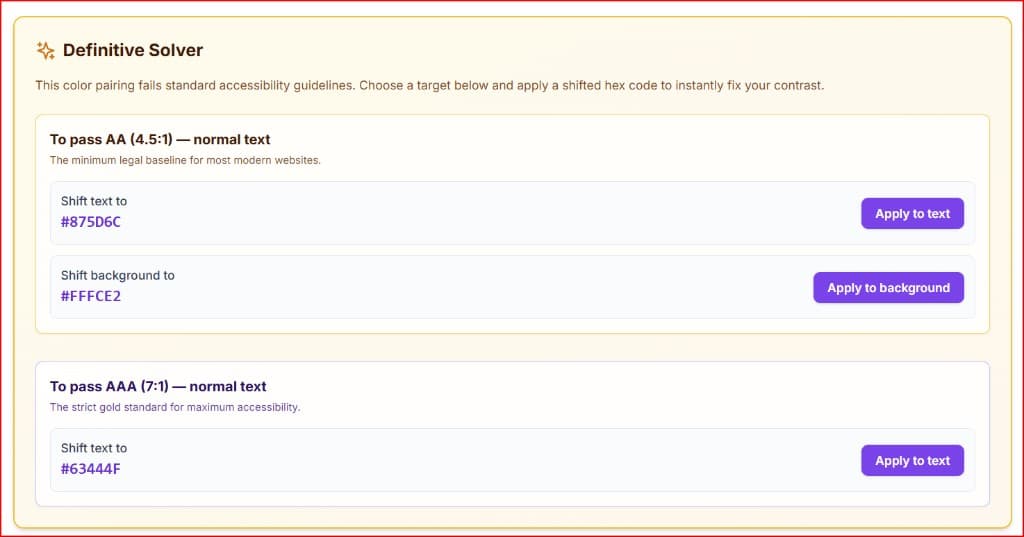
Swipe horizontally or scroll to the right to view the full screenshot.
Calculator Accessibility: Handling Live Mathematical States
Static informational pages are simple for screen readers to process because the text never changes once it loads. However, interactive web applications—like financial interest estimators or structural material calculators—introduce a major accessibility hurdle. When a user updates a number or toggles an option, the mathematical outputs refresh instantly on screen, but a visually impaired user has no idea a new computation occurred.
To bridge this gap without forcing a user to manually re-navigate the whole page structure after every entry, you must utilize live regions. By attaching the attribute aria-live="polite" to your calculator's final output or summary card container, you instruct assistive software to automatically read out the newly calculated totals the moment the user finishes updating the form.
⚡ Core Accessibility Blueprint for Interactive Tools
- Explicit Label Connections: Every numeric field must have an explicit HTML label tied via
idandhtmlForfields. Using temporary placeholder texts inside input cells triggers scanner failures because they disappear entirely as soon as someone types. - Don't Hijack Focus States: Avoid building auto-advance loops. Automatically throwing focus to the next input box when a user fills a cell disorients keyboard-only visitors who rely on custom tab sequences to navigate a matrix.
- Include Units in Labels: Always place your scale parameters (e.g., %, lbs, or years) directly inside the structural label text. Assisting tools need to state the dimension requirement before a user types data into an empty input frame.
A practical checklist before you ship
Walk through this list on a template page (home, article, calculator) and fix the pattern once in your layout so every URL inherits it.
- Exactly one
<main>for primary content. - Site navigation inside
<nav>. - Footer in
<footer>. - Any floating UI (cookie bar, promo strip) inside a labeled region.
- Headings in order; buttons and links used for the right job.
- Distinct link names when destinations differ (visible text or
aria-label). - Wide tables and diagrams that scroll sideways can receive keyboard focus and have a clear name.
When you are ready to stress-test infrastructure math as well, the CDN ROI calculator and cloud egress cost tool model delivery economics—but accessibility structure is what lets every user find the controls once they arrive.
Definitive Summary
- Semantic HTML uses meaningful tags (
main,nav,button, headings) so browsers and assistive tech understand each block's purpose. - Landmarks are the major regions screen reader users jump between; many semantic elements create them automatically.
- ARIA adds roles, labels, and states when native HTML is not enough—prefer real elements first.
- Together: structure the page with semantics, name orphan UI with labeled sections, use ARIA for custom behavior—not as a replacement for good HTML.
- Scanners flag missing regions, duplicate mains, contrast, and keyboard gaps; fix layout patterns once so every page benefits.