See What's New Opens a Microsoft Page of Features, Not Every Change on Your Windows 11 Computer
See what's new is the link on a Windows 11 update. It opens a Microsoft page that names features. For the 2026 update, Microsoft says that update builds on the 2025 update and brings together features that monthly updates delivered. Microsoft says that if you have been keeping the device up to date, many of those experiences might already be familiar. Features can vary by device and market, and some can still roll out later.
Published on

After a Windows 11 update finishes, Update history can show a line for that update with a link named See what's new. The words sound like a receipt, as if the next page will list what changed on your computer on the day the line says the update installed. The page that opens is Microsoft's own description of features. It can name a lot, and it still is not a complete list of what changed on your computer.
That mix-up is the reason for this guide. The update did finish installing, so something on the computer did change. The link does not walk the machine and report back. It opens a general page. For the 2026 update, that page talks about an update that rests on the 2025 update and gathers features monthly updates had already delivered, which is why a computer that has been kept current can already find many of those experiences familiar. The same page says features can differ by device and by market, and that some can still arrive later.
Disclaimer: This is general education about one Windows 11 link, not a repair plan for a single computer. Windows can move a link, rename a screen, or show a different page after a later update. A work or school computer can hide parts of Settings.
The link sits on a finished install
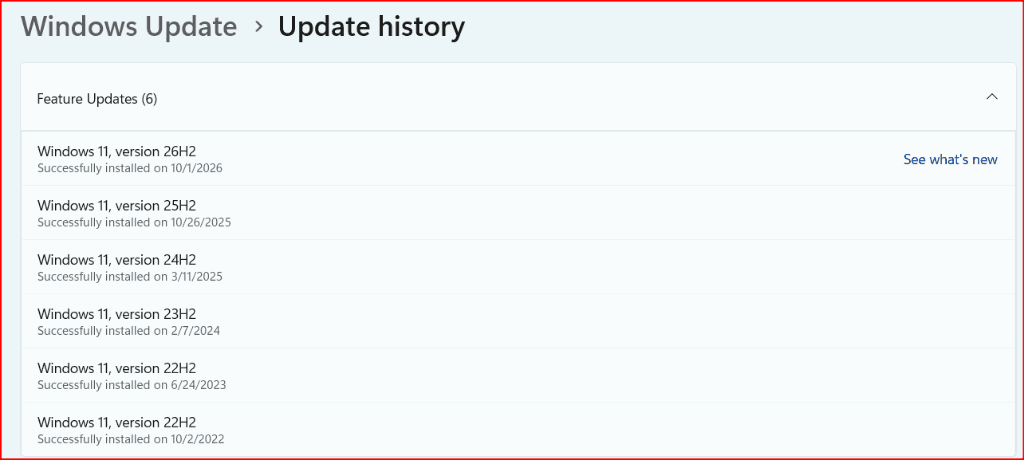
In Update history, a Windows 11 feature update can appear as its own line, with a version name and the date Windows reports that the install succeeded. On a current line, that version name can read 26H2, while the page behind See what's new leads with the 2026 update, which is Microsoft's name for the update that line is pointing at. The date on that line is the day that install finished on your computer, and it can fall later than the day Microsoft first offered the update, because the rollout does not reach every computer at the same time.
Successfully installed means Windows reports that this update finished. It does not mean the installer left part of the update out, and it does not mean you can click the history line to undo it. See what's new is a separate link on that same line, and that link is what opens Microsoft's page.
Windows Update history: Feature Updates
Swipe horizontally or scroll to the right to view the full screenshot.
The 2026 page gathers work monthly updates already carried
Microsoft's page for the 2026 update says that update rests on the 2025 update, and that it gathers features monthly updates had already sent out. If you have been keeping the computer up to date, Microsoft says many of those experiences might already be familiar. Familiar, in that sentence, means you may already have met them. It does not mean the page looked through your files and wrote down what arrived on install day.
Inside this update: the top of Microsoft's page
Swipe horizontally or scroll to the right to view the full screenshot.
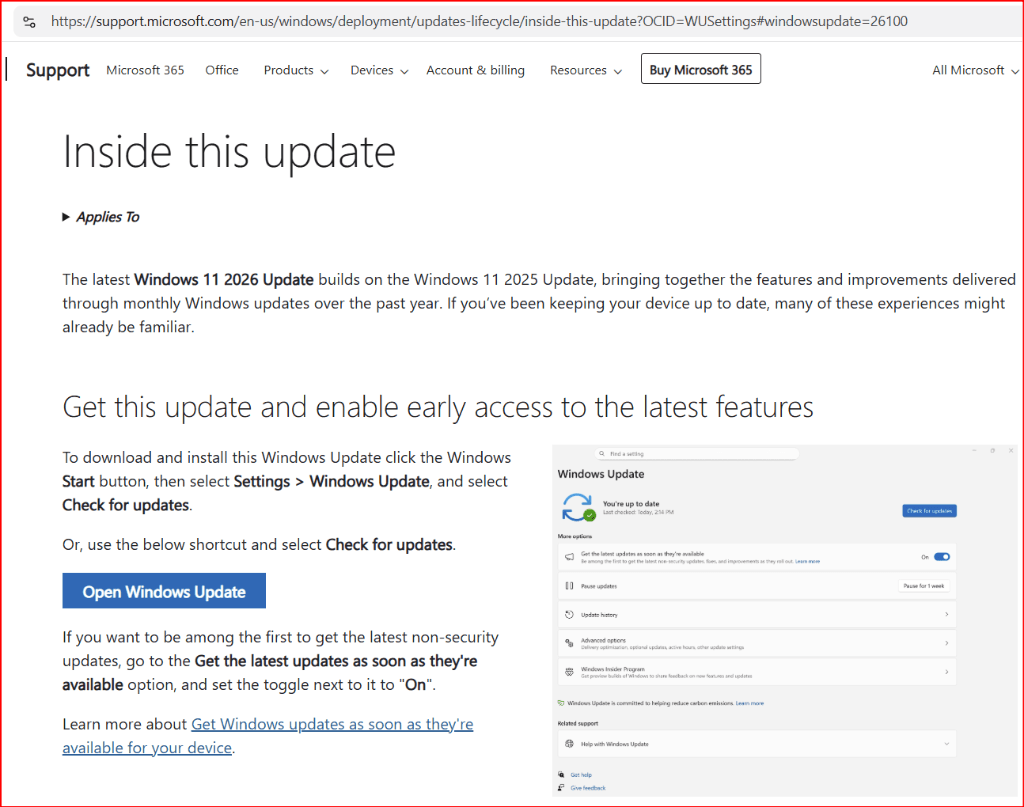
The lower part of that view is still Microsoft's page. It shows how to check for the update and how to turn on early access to non-security updates. The small screen that says You're up to date is Microsoft's own picture. It is not a second copy of this computer's Update history.
A familiar feature can be older than the history date
The history date is still the day this update finished installing, and that install is a real change. The features named on the page can have a longer story. A monthly update can have brought one of them in earlier, so the day you see the new history line is not automatically the day you first received every item the page describes. That is why the page can feel huge on the day the line appears, even when a computer that stayed current might already find many of those experiences familiar.
The page also reaches past that one update
The page See what's new opens is not limited to a single year's notes. Further down, the heading is Explore what's new in recent updates. The sentence under that heading points to features from the past year of Windows 11, and then the page tells you to open a tab. The tabs are the 2026 update, the 2025 update, the 2024 update, and the Windows 10 2022 Update. The 2024 update and the Windows 10 update are older than that past year, and the Windows 10 tab is not a Windows 11 update, so the page is a stack of update descriptions, not a diary of your computer on one date.
Your computer can disagree with the page
Microsoft says features vary by device and by market, and that some can still roll out later, on a schedule that is not the same for everyone. A feature named on the page can be absent from your computer today. A change that did land on your computer can still be left off the page. The page can talk about security or devices in general while leaving out one monthly security fix, or one driver, that this computer installed. Either gap is enough to keep the page from being a complete list of what changed on your computer.
A named feature can still need hardware you don't already have
Some names on this page describe a capability the computer can use only when the hardware supports it. The 2024 write-up names Wi-Fi 7, and it says the computer and the wireless access point both have to support Wi-Fi 7. Checking what Windows says the computer is using, which is the subject of the guide to reading a Windows Wi-Fi label, is a different job from reading See what's new.
A computer that feels slow is a different question
See what's new is an easy link to open when the computer feels different after an update, slower, or newly unfamiliar. The page will not time those waits. If the question is how many minutes the computer is costing you, the guide to measuring that lag before you upgrade the computer is the place to start, and the Is a Faster Computer Worth It? calculator is where a measured wait can be turned into a cost. See what's new does not do either of those jobs.
What you can use the link for
Open See what's new when you want Microsoft's description of the update, including features a kept-up-to-date computer may already feel familiar with, and features that can still depend on the device, the market, and a rollout that is not finished. Use the history line when you want the date that this update finished installing. Use neither one as a full account of every change on the computer. A particular monthly fix or driver can be missing from that page, and a feature the page does name can still depend on hardware.
Three questions keep Microsoft's page in its lane. That page is the one See what's new opens, not Update history. Have I been keeping this computer up to date? If I have, many of these experiences might already be familiar. Does this feature fit this device, or is it still waiting on a later rollout? Is the thing I actually came to check, such as a slow computer or a piece of hardware, even something Microsoft's page is trying to list?
Summary
- See what's new is the link on a Windows 11 update line. It opens a Microsoft page that names features.
- In Update history on your computer, Successfully installed means that update finished. See what's new, the link on that same line, is not a receipt of every change on your computer, and the history line is not an undo button.
- For the 2026 update, Microsoft says it builds on the 2025 update and gathers features that monthly updates delivered. If you have been keeping the device up to date, many of those experiences might already be familiar.
- Features can vary by device and market, and some can still roll out later. A named feature can also need hardware you don't already have.
- A computer that feels slow is a different question. See what's new does not measure that wait.